Zebra ZD220 and ZD230 setup, calibration and first label
Zebra ZD220 setup takes four steps: load the labels, calibrate with the FEED button, install the driver or Zebra Browser Print, and print one test label. The ZD230 sets up the same way. Both have one button for paper (FEED) and one status light, so most of the setup is holding FEED and counting flashes.
How it works
Hold FEED and count the flashes
Print a first label on your ZD220
Open the 2 x 1 test label, pick Zebra, set Printer DPI to 203, and send one label to check it stops on the gap.
Open the test label1Which model
ZD220 or ZD230: which one do you have?
Look at the sticker on the printer. The two are close twins, and everything on this page works for both.
| ZD220 | ZD230 | |
|---|---|---|
| Resolution | 203 dpi (8 dots/mm) | 203 dpi (8 dots/mm) |
| Max print width | 4.09 in (104 mm) | 4.09 in (104 mm) |
| Max print length | 39 in (991 mm) | 39 in (991 mm) |
| Speed | 4 in (102 mm) per second | 4 in per second, up to 6 in (152 mm) |
| Printer languages | ZPL and EPL | ZPL and EPL |
| Controls | Power, FEED, one status light | Power, FEED, one status light |
The main difference is speed. The ZD230 can print faster, but the labels look the same: 203 dpi, up to a little over 4 inches wide. So a 4 x 6 shipping label fits, and so does a 2 x 1 barcode.
2Examples
Labels to test your ZD220 with
These are real renders from the editor, with made-up details. Click one and it opens with that exact label, at 203 dpi sizes that fit the ZD220 and ZD230.


3Load
Load the labels
Open the cover and drop the roll in so the labels come off the front with the printing side up. Pull a few labels out past the front of the printer and close the cover until it clicks.
Turn the printer on. When the status light is solid green, the printer is ready.
Press FEED once. You want one label to come out and stop at the gap. If you put in a new roll of the same labels you used before, press FEED once or twice and it lines up again. A new kind of label needs a calibration.
4Calibrate
Calibrate the ZD220 with the FEED button
Calibration tells the printer where each label starts and stops. Do it the first time, and every time you change to a different label size or type.
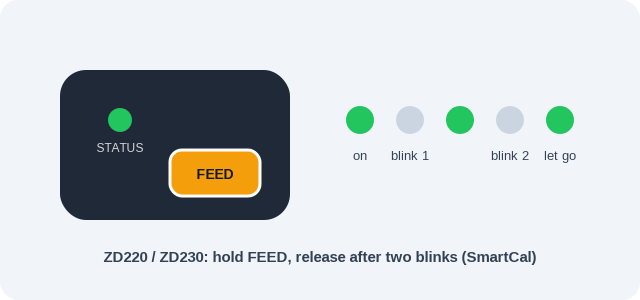
Count the flashes. FEED does three different things, depending on when you let go.
Hold FEED, then let go after
- 1 flash prints a configuration report.
- 2 flashes runs media calibration (Zebra calls it SmartCal).
- 3 flashes resets the printer to factory defaults.
Other Zebra models use other buttons. See how to calibrate a Zebra printer, model by model.
- Load the labels and close the cover.
- Turn the printer on and wait until the status light is solid green.
- Press and hold FEED.
- Let go after the light flashes twice.
- Wait while the printer feeds a few labels to measure them. When the light is solid green again, it's done.
- Press FEED once. One label should come out and stop at the gap.
5Connect
Connect over USB and install the driver or Browser Print
Plug the printer into your computer with the USB cable. Then pick one way to print.
Zebra Browser Print is a small helper app from Zebra. Install it, quit your browser completely and open it again. Now the editor can find your ZD220 and send the label to it as ZPL, the printer's own language. This is the way to print from Chrome or Edge without a print dialog.
The Zebra driver (ZDesigner) is the other way. Install it from Zebra's support page for your model, and the printer shows up in the normal print dialog on Windows or a Mac. In the editor, that's the This computer printer.
Use one way for your first test. If two queues send the same label, you can't tell which one printed it. Stuck on the helper? The Browser Print setup guide walks through it.
6Test label
Print a first label from your browser
Start with one label. If it looks right, the rest of the roll will too.
- Open https://app.mylabelmaker.com. No signup. The 4 x 6 shipping label fits a shipping roll. On a barcode roll, open the 2 x 1 barcode label instead.
- Check that the label size matches the roll in the printer.
- Pick Zebra as the printer (with Browser Print running), or This computer if you installed the driver.
- Set Printer DPI to 203.
- Click Print and send one label.
- If it fits and the barcode scans, load your list and print the rest.
7Not printing
ZD220 not printing? Check these three things
Most of the time it's one of these.
- No Browser Print. If the editor can't see a Zebra printer, the helper isn't running, or the browser was open while you installed it. Start Browser Print, quit the browser fully and open it again.
- Wrong size. A label designed for 4 x 6 on a 2 x 1 roll gets cut off or spread over several labels. Open the template for the roll you loaded, and in the driver set the same width and height.
- Wrong label type. Labels made for a ribbon don't darken on their own. If you're not sure what you bought, scratch one with a fingernail. A label that leaves a dark line is direct thermal. Changed from gap labels to continuous or black-mark stock? Calibrate again.
8Blank labels
ZD220 prints one label, then a blank
A blank after every label means the printer and the design disagree about how long a label is.
Run the calibration first (hold FEED, let go after two flashes). Then check the label size in the editor and in the driver. Both must match the labels on the roll, not the roll you used last week.
If it still skips, the Zebra printing blank labels guide goes through the other causes.
9Reset
Reset the ZD220 or ZD230 to factory defaults
Only do this after calibration has failed a couple of times. A reset clears the settings someone changed, which is useful on a printer you bought used.
With the status light solid green, hold FEED and let go after three flashes. The printer goes back to factory defaults. Then calibrate again with two flashes before you print.
FAQ: Zebra ZD220 and ZD230 setup
How do I calibrate a Zebra ZD220?
With the status light solid green, hold FEED and let go after the light flashes twice. The printer feeds a few labels to measure them. When the light is solid green again, it's done.
Is the ZD230 faster than the ZD220?
It can be. The ZD220 prints at 4 inches (102 mm) per second. The ZD230 also prints at 4 inches per second, and goes up to 6 inches (152 mm) per second. Both print at 203 dpi, up to 4.09 inches wide.
What DPI is the ZD220?
203 dpi, which is 8 dots per mm. The ZD230 is 203 dpi too. Set Printer DPI to 203 in the editor so the label prints at its real size.
How do I reset a ZD230?
With the status light solid green, hold FEED and let go after three flashes. That resets the printer to factory defaults. Calibrate again afterwards: hold FEED and let go after two flashes.