How to make parts bin labels from a list of McMaster part numbers
You can make parts bin labels from a list of McMaster part numbers with a free label maker in your browser. Copy the part numbers and descriptions from your McMaster order into a spreadsheet, upload it or paste it, and every row becomes a label with a screw, nut or washer icon, the description and a QR code that opens the part again when you need more. Print them on a DYMO, on Brother 12 mm tape for Gridfinity bins, or on an Avery 5160 sheet.
Open the parts bin label
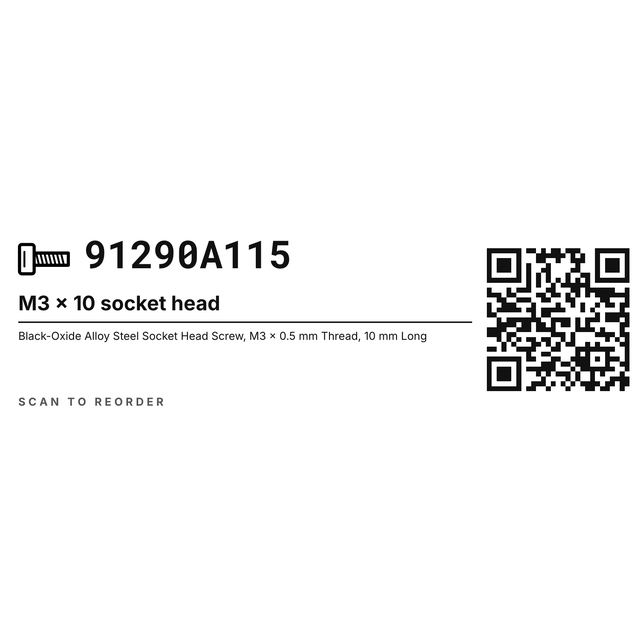
A DYMO 30252 label with a screw icon, the part number in bold, the description and a QR code to reorder, ready for your own parts.
Open the parts bin label1The drawer problem
Parts bin labels that tell you what is in the drawer
An M3 x 8 and an M3 x 10 socket head screw look the same from across the bench. So do a 4 mm washer and a 5 mm one. A few months after the order arrives, the bags are gone and the drawers just say "screws".
The good news is that your McMaster order already has everything a label needs: the part number and a full description for every part. Put that list in a spreadsheet once, and you can print a neat label for every bin, drawer and Gridfinity box in one go. When you run low, scan the QR code and the part's page opens so you can order the same thing again.
2Examples
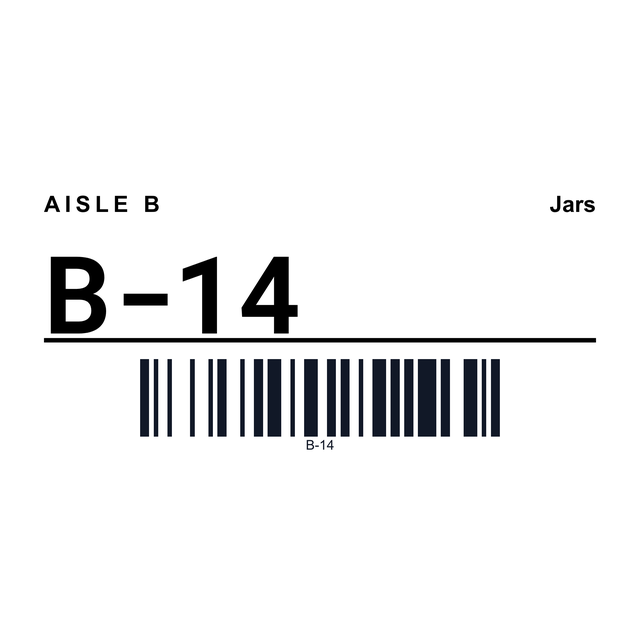
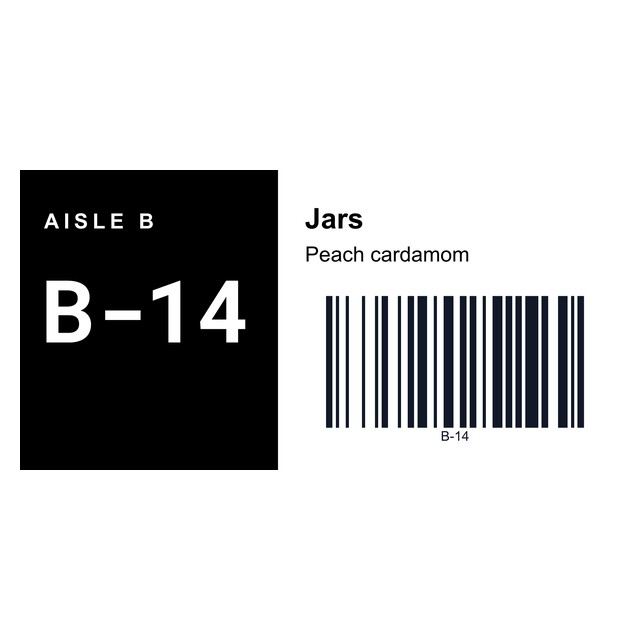
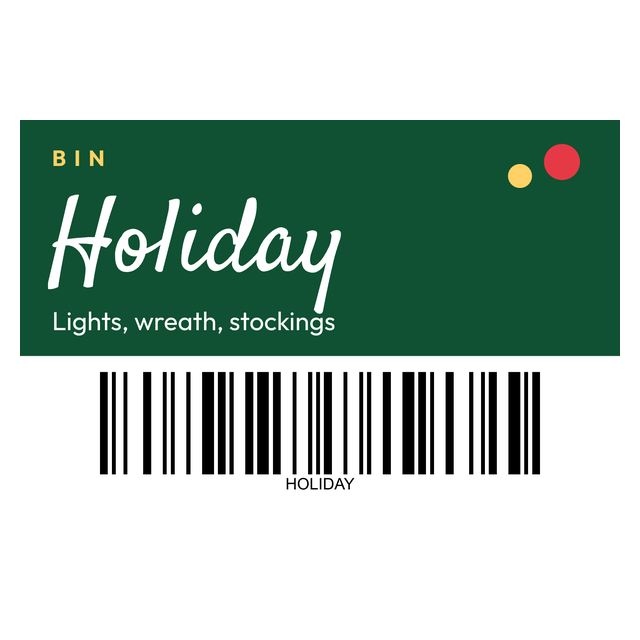
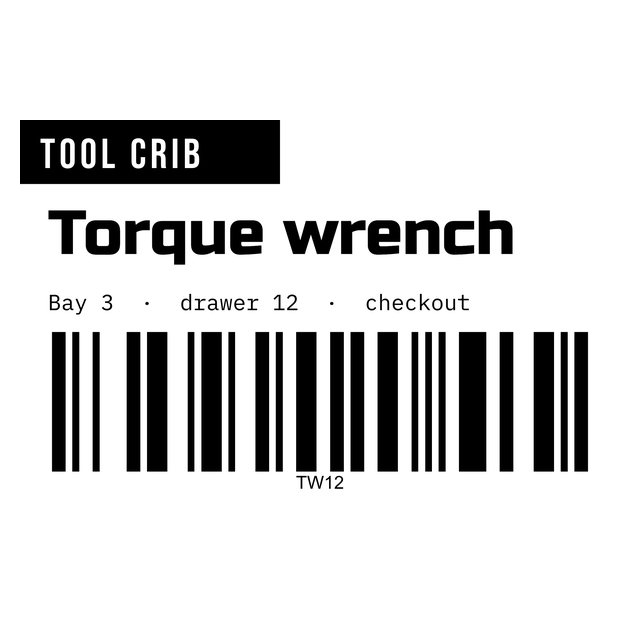
Parts bin label examples you can open
These are real renders from the editor. Click one and it opens with the same layout, ready for your own parts.


3Every parts bin template
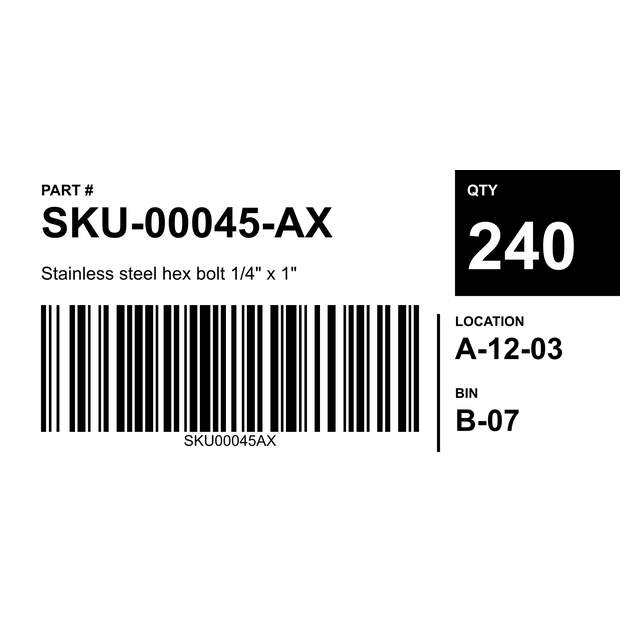
All parts bin label templates
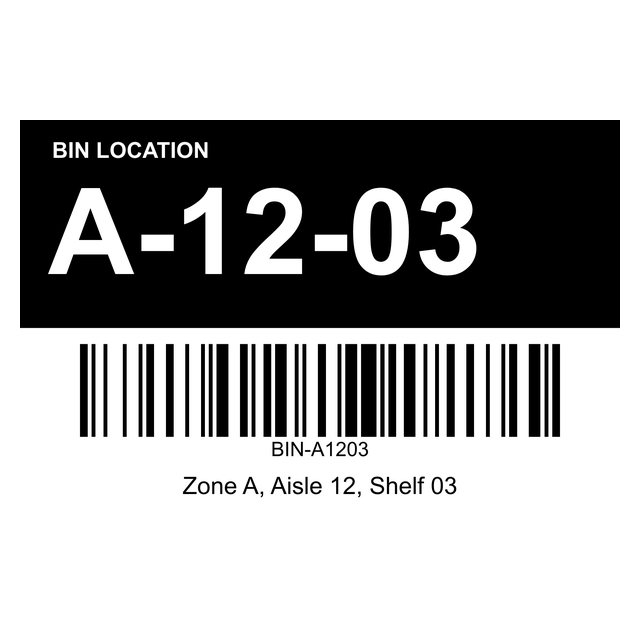
Parts bin, hardware drawer, storage bin and bin location labels for DYMO, Brother, Zebra and Avery sheets. Click one to open it.
4Your parts list
What your parts list looks like
Three columns are enough. Copy the part number and description from your McMaster order, order history or cart, and add a short name you can read at a glance. The first row holds the column names.
Excel, CSV and Google Sheets all work. You can also skip the file: copy the rows straight from your spreadsheet and paste them, and the columns stay columns.
| Part Number | Name | Description |
|---|---|---|
| 91290A115 | M3 x 10 socket head | Black-Oxide Alloy Steel Socket Head Screw, M3 x 0.5 mm Thread, 10 mm Long |
| 92703A164 | M5 x 20 flat head | 18-8 Stainless Steel Torx Flat Head Screw, M5 x 0.8 mm Thread, 20 mm Long |
| 90591A250 | M3 hex nut | Hex Nut, M3 x 0.5 mm Thread |
| 93475A230 | M4 washer | 18-8 Stainless Steel Washer for M4 Screw Size |
| 94180A331 | M3 heat-set insert | Tapered Heat-Set Insert for Plastic, Brass, M3 x 0.5 mm Thread |
5Step by step
How to make parts bin labels from your McMaster order
Here is the whole job, from your parts list to labels on the bins. It takes about five minutes the first time.
Print one label or one sheet on plain paper first and hold it up to a bin. If it fits, print the real thing at 100% scale.
- Open https://app.mylabelmaker.com and click Templates. Search for parts bin and pick the DYMO 30252, the Gridfinity 12 x 36 mm or the Avery 5160 sheet.
- Open Data on the right. Click Upload for your Excel, CSV or Google Sheets file, or click Paste and paste the rows you copied.
- On a DYMO or Brother label, pick Each row. Click the part number on the label, then Part Number under Variables. Do the same for the name and the description.
- Click the QR code, then Part Number. The link stays and only the end changes, so each label's QR code opens its own part.
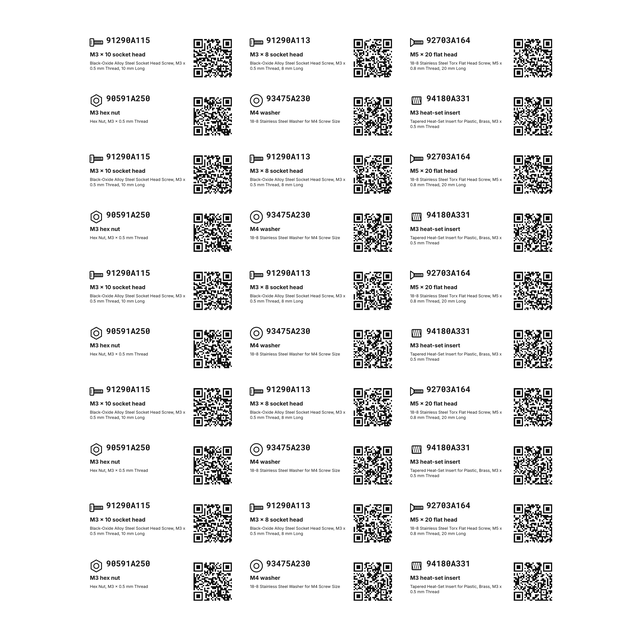
- On the Avery 5160 sheet, pick One sheet, open Place data and click Fill every label. Label 1 gets row 1, label 2 gets row 2, and the QR links follow the part numbers.
- Look at the icons. Each one follows the words on its own label, so a nut gets a nut and a washer gets a washer. Slide through the rows to check them.
- Click Print and pick your printer. Six parts on a 30-label sheet print six labels, and the rest of the sheet stays blank for next time.
6Pick your label
Three parts bin labels for three printers
- DYMO 30252 on a LabelWriter: 1-1/8 x 3-1/2 in, the classic address roll. Room for the icon, a big part number, the name, the full description and a QR code. Black only, so it prints sharp on a thermal printer.
- Gridfinity 12 x 36 mm on a Brother: for the label slot on the front of a Gridfinity bin, printed on 12 mm tape such as Brother DK-22214. A big icon, the name and the part number.
- Avery 5160 on any printer: 30 labels per Letter sheet on an inkjet or laser printer, each with the icon, part number, name, description and a QR code. Good for drawer cabinets and small parts organizers.
- Your own size: click the label size, then Custom size, and type the size of your drawer front. The icon and text move with it.
7Hardware icons
Hardware icons for screws, nuts and washers
Open Shape and scroll to Hardware. There are 15 clean line icons that print crisp on a thermal printer and on paper.
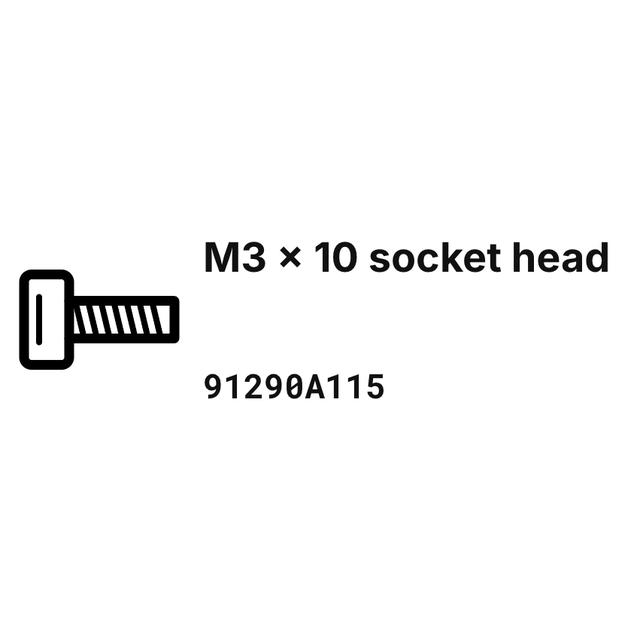
The icons on the parts bin templates follow the words on their own label: "Hex Nut" shows a nut, "M4 washer" a washer, "socket head" a socket head screw. To get the same on your own design, click a hardware icon, then any column under Variables.
- Socket head screw
- Button head screw
- Flat head screw
- Hex bolt
- Wood screw
- Set screw
- Hex nut
- Lock nut
- Washer
- Split lock washer
- Heat-set insert
- Standoff
- Dowel pin
- Spring
- Bearing
8Good to know
What the label maker does and does not do
- It does not look up McMaster for you. Typing a part number will not fetch its description. McMaster's own data service needs their approval, and we don't copy their site. Your order, order history or cart already lists each description, so copy it from there.
- It makes a label for every row you give it. Part number, name, description, icon and QR code, one label per part.
- The QR code is just a link. It opens the part's page on McMaster's site. You still place the order yourself.
- Any supplier works. If your parts come from somewhere else, put that shop's link in the QR code and the end of it still follows the part number.
Questions about parts bin labels
How do I make labels from a list of McMaster part numbers?
Copy the part numbers and descriptions from your McMaster order into a spreadsheet, then open a parts bin template in the free label maker and upload or paste the list in Data. Link the columns to the label, and every row becomes a label with an icon, the description and a QR code to reorder.
Can it look up McMaster part descriptions for me?
No. Typing a part number does not fetch its description, because McMaster's data service needs their approval and we don't copy their site. Your order, order history or cart already shows the description next to each part number, so copy the rows from there.
Can I add screw, nut and washer icons to a label?
Yes. Open Shape and scroll to Hardware for 15 icons: socket head, button head and flat head screws, hex bolt, wood screw, set screw, hex nut, lock nut, washer, split lock washer, heat-set insert, standoff, dowel pin, spring and bearing. On the parts bin templates the icon changes to match the words on each label.
Will the QR code open the right part on each label?
Yes. Click the QR code, then your Part Number column in Variables. The link to the part page stays and only the part number at the end changes, so every label opens its own part.
What size label fits a Gridfinity bin?
Most Gridfinity label slots take a 12 mm tall label. The Gridfinity template is 12 x 36 mm for Brother 12 mm tape such as DK-22214. If your bins are wider, set your own length with Custom size.
I only have 6 parts. Can I print them on an Avery 5160 sheet?
Yes. Fill every label puts your 6 rows on the first 6 labels, and the other 24 print blank, so you can feed the same sheet again next time.