Home · Compare · Labelary alternative
Labelary alternative
Labelary turns ZPL into a picture on their server. You can do the preview here, on your computer, and you can design the label before the code exists. Use Labelary when you specifically want their renderer or their API. Use this ZPL viewer when the next step is a Zebra printer.
Updated October 2026. Prices and specs change. Check the maker before you buy.
Labelary alternative for people who have to print
Labelary became the default tab because it answers one question fast: what does this ^XA job look like? You paste, they draw, you download. That is a good question. It is not the whole job if you also have to change a word, add a row from Excel, or send the code to the printer on the bench.
This site splits those jobs. The viewer is for code you already have, from an ERP, a stored format, or an old file. The editor is for a label you are still drawing. Both are free. Neither asks for an account. The picture on the viewer page is a layout of the fields. The app draws the print preview. The printer receives the ZPL, not a photo of the screen.
mylabelmaker and Labelary, side by side
| Feature | mylabelmaker | Labelary |
|---|---|---|
| Preview | Layout preview on this page, plus the picture in the app. | Their server draws PNG or PDF from the ZPL you POST. |
| Design | Drag text, barcodes, and a spreadsheet. Copy ZPL when you need it. | Viewer and API. You bring the code. |
| Print to a Zebra | Browser Print sends the pasted job. | Download PNG or PDF and print that file, or send ZPL yourself. |
| API | No public render API. | HTTP API. Useful, and rate limited. Keep it if your code already calls it. |
| Account and price | Free. No signup. | You can render without an account. Heavy API use follows their limits. |
| Excel | One row, one label. | Not a spreadsheet tool. |
Where Labelary is the better choice
Keep Labelary if a program you wrote already POSTs ZPL to their API and stores the PNG. Rebuilding that call is a software project, not a printing problem. Keep it as a second opinion when a command is rare and you want their renderer to confirm the offsets. Their picture is a render. Ours is a layout of the commands we draw (^FO, ^A0, ^FD, ^BC, ^BQ, and a marker for ^GF). If those disagree, trust a print on the real Zebra before you trust either picture.
Where this viewer is the better choice
Use this page when the ZPL is a file on your PC and the Zebra is plugged into that PC. Open the .zpl file, check 203, 300, or 600 dpi, and print with Browser Print. Use the editor when you do not have code yet: a 4x6 pack face, a SKU label, a sheet from Excel. You can still copy the ZPL out and paste it into Labelary if you want their PNG.
How to switch a preview habit
- Open the ZPL viewer. The sample 4x6 job is already in the box.
- Replace it with your file. On Windows, a .zpl file opens in Notepad, or you drop it on the page.
- Set DPI to the printhead. A 4 inch label at 203 dpi is 812 dots. That number is often the ^PW in the file.
- If the layout looks right, print from the browser with Browser Print. If you only needed a PNG for a slide, download the picture from the app and leave the printer alone.
- If you are designing, start at https://app.mylabelmaker.com, then copy ZPL. You do not have to hand-write ^FO for a simple label.
Commands you will actually compare
^XA and ^XZ wrap the job. ^PW and ^LL are width and length in dots. ^FO is the origin. ^A0 is the scalable font. ^BC is Code 128. ^BQ is a QR code. ^GF is a bitmap, which is how a designed label often exports. A viewer that only shows those still covers a shipping label and a product label. It will not teach you every Zebra firmware quirk. The ZPL tutorial walks the same commands with copy-paste examples.
Windows, a .zpl file, and a print
On Windows the file is often sitting in Downloads with a .zpl or .txt extension. Notepad opens it. You can also drop the file on the viewer. The first check is ^PW and ^LL. At 203 dpi a 4 inch label is 812 dots wide and a 6 inch label is 1218 dots long. At 300 dpi those numbers are 1200 and 1800. At 600 dpi they are 2400 and 3600. If you preview a 300 dpi job at 203, the label looks like it was designed for a wider printer. Change the DPI control before you decide the code is wrong.
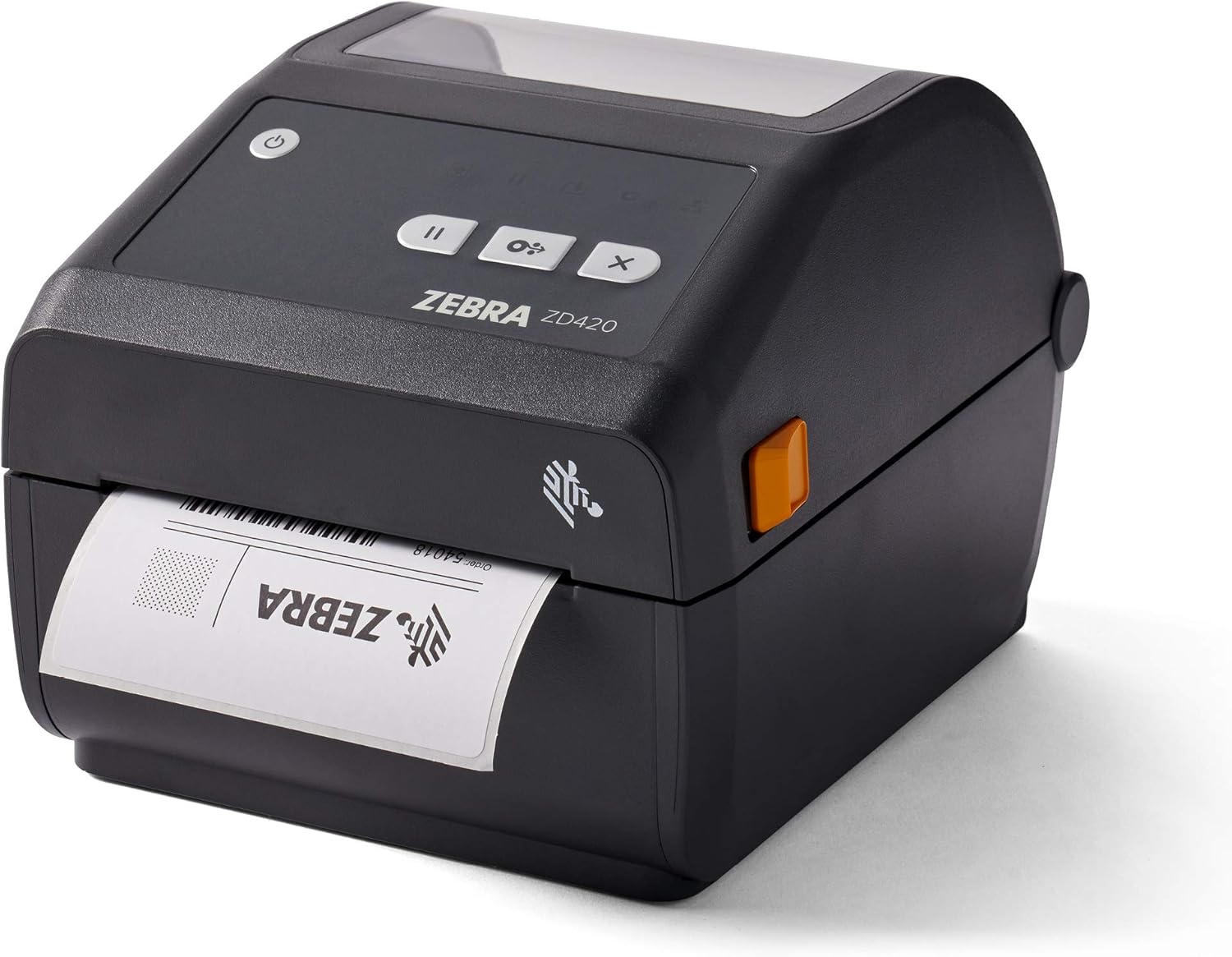
Browser Print is the Windows helper that sends the pasted job to the Zebra. Install it from Zebra, restart the browser, and print from the page. The printer must be on the same computer. A PNG download is for a slide or a ticket, not for the printhead. Thermal print wants the code, or a driver job at the real size. Labelary's PNG is the right file when a program you wrote already expects their API. It is the wrong file to drop into the Zebra driver and hope the bars scan.
Blank preview on this page usually means the job never closed with ^XZ, or the commands are outside the ones the layout draws. The printer may still print them. Wrong size usually means the inch fields do not match ^PW. An unsupported command is a reason to print one real label, not a reason to trust either website's picture. If Labelary and this page disagree, the Zebra is the referee.
Questions about a Labelary alternative
What is a Labelary alternative that also prints?
Paste ZPL in the ZPL viewer, check the layout, then send that code to a Zebra with Browser Print. You can also design the label first and copy ZPL out.
When is Labelary the better tool?
When you want their server-side render of an obscure command, or you already call their HTTP API from another program. This site does not replace that API.
Does the preview leave my computer?
The layout on the ZPL viewer page is drawn here. Printing sends the original ZPL to the printer on this computer, not a PNG.
Can I design a label and then view the ZPL?
Yes. Design in the browser, copy the ZPL, and load it in the viewer. Labelary starts from code you already have.
BarTender DYMO vs Zebra ZebraDesigner ZPL viewer All comparisons
Design it in the label maker.
When to choose Labelary
Choose Labelary when you want their server render or their HTTP API. Checked: October 2026. Their viewer is free to try in the browser. Rate limits live on their API docs, so this page does not invent a quota. Preview and print from the ZPL viewer when the printer is yours.
A list of names belongs on print labels from Excel.