Print QR code labels on a Zebra
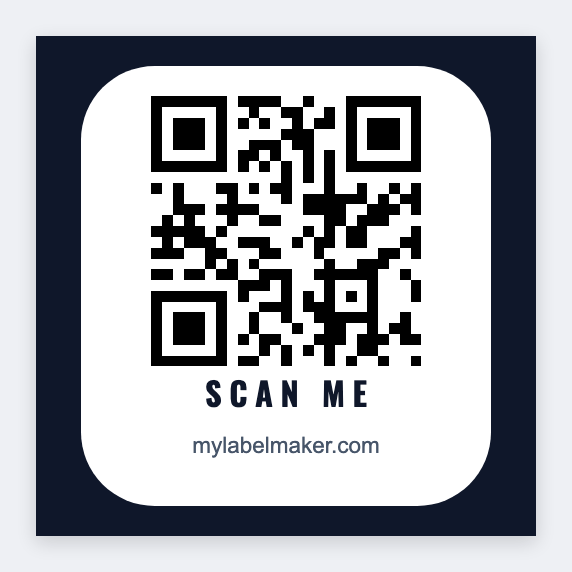
A QR on a thermal sticker can open a product page, an asset record, WiFi login, a warranty form, or event check-in. You can print a single QR, or a unique one per Excel row, on a Zebra from this computer. Free, no signup. Mac and Windows.
What people print as QR labels
- Product packaging, link to instructions, recipes, or reorder URL
- Asset tags, scan to open CMMS / inventory record
- Warehouse locations, bin QR for handheld scanners
- Events, badge or seat QR from attendee CSV
- IT / facilities, equipment serial + support URL
Print one QR label
- Open app.mylabelmaker.com.
- Set label size (2×2 or 2×1 works well for QR-only).
- Add QR → paste URL or text payload.
- Optional caption text under the code.
- Print at printer-native DPI for clean modules.
Print a unique QR per spreadsheet row
- CSV columns e.g.
url,asset_id,name. - QR field value:
{{url}}(or build a pattern likehttps://example.com/a/{{asset_id}}in the sheet). - Text:
{{name}}or{{asset_id}}. - Load CSV in Variables → preview → batch print.
Excel deep dive: print labels from Excel. Inventory barcodes (linear): inventory labels.
Size tip: Keep QR large enough for phone cameras at arm’s length, roughly 0.8"+ module area for dense URLs. High DPI (300) helps small labels.
QR vs linear barcodes
Use CODE128/UPC for classic inventory scanners; use QR when the payload is a URL or long string. Many US warehouses print both on the same label. Free linear maker overview: barcode label maker online.