Warehouse bin, asset, and cable labels on a Zebra
You need bin labels that still scan after a forklift clips the rack, asset tags that stay on a laptop, and cable flags that wrap without smearing. That's a thermal job. Design once in the free label maker, load the spreadsheet, print on a Zebra.
Walk it in this order: pick the size, design one face with tokens like {{loc}} or {{asset}}, wrap a cable flag if you need it, then load the sheet and print. Export ZPL if your CMMS wants the file instead of a live print.
What you'll need
- Zebra thermal printer (ZD/GK series common for warehouse; consider 300 dpi for small text/barcodes on cables).
- Browser Print installed for direct printing.
- Spreadsheet of bins, assets, or cables (one row per label).
- Appropriate stock: standard for bins/assets, self-laminating or wrap-around for cables.
Pick the size and stock
Match size to the environment
Common sizes from the shop and templates:
- Bin/shelf labels: 3x2, 4x3, or 2x1 for tight racks.
- Asset tags: 2x1 or 1.5x1 with strong adhesive or polyester stock.
- Cable/wire: Self-laminating 1x1 or wrap-around formats (print on the flag area; the clear laminate protects the print).
In mylabelmaker, pick the size first from the artboard toolbar. The canvas will match your physical stock.
Design bin and location labels
Use the warehouse inventory template as starting point
Open Templates → Warehouse → "Warehouse inventory". It includes a clean layout with location code (big barcode + text), description area, and often a quantity or date field.
Replace static text with tokens:
- Location/Aisle:
{{bin_id}}or{{aisle}}-{{bay}} - Description:
{{part_name}} - Barcode value: usually the bin_id or SKU for scanning into WMS.
Add shapes (rectangle border or color block) for visual zoning if your warehouse uses color coding by area.
Design asset tags
Serialized tags that survive
For equipment, IT assets, or tools:
- Asset ID or serial as prominent barcode (CODE128 or Code 39 common in asset systems).
- Human readable asset number + description.
- Optional: QR code linking to your asset database or maintenance ticket system (use
{{asset_url}}or a base URL + token). - Small date or "Property of XYZ" footer.
Use durable material suggestions from the shop (polyester or vinyl labels hold up better than paper for assets).
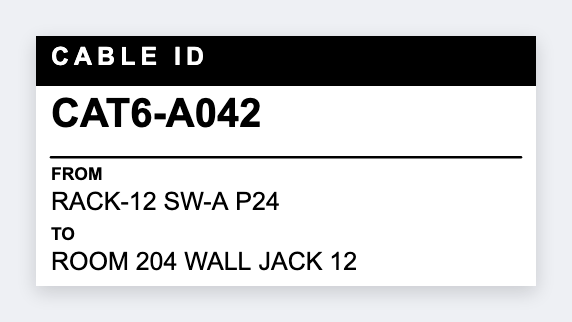
Cable and wire labels (self-laminating or flag)
Handle curved and protected labels
For data center, electrical, or industrial cabling:
- Use the shape tools (rectangle or rounded) to create a "flag" area that wraps or stands out.
- Print the identifier (cable ID, port, from-to) in the printable zone.
- For self-laminating stock, design so the clear over-laminate covers the text after application.
- Include a small barcode or QR for scanning during audits or troubleshooting.
Tokens like {{cable_id}}, {{from_rack}}-{{to_rack}}, or {{port}} make it easy to generate hundreds from a single spreadsheet export from your network documentation tool.
Load Excel and print the stack
Export your bin list, asset register, or cable schedule as CSV or publish a Google Sheet view.
In mylabelmaker, open the Variables panel, load the data. The row navigator appears automatically when tokens match headers.
Print directly (one label per row) or use Options → Copy ZPL to feed your existing print queue, CMMS, or WMS that expects ZPL.
For very large runs, the multi-DPI support (Auto-detect from printer) ensures small barcodes on asset tags or dense text on bin labels stay crisp even on 300/600 dpi printers.
Print the aisle, the assets, the cables
Design once. Load the sheet. Print on the Zebra. No signup.
Open cable label template