How to print name badges from Google Sheets
Do this in the free app: app.mylabelmaker.com. No signup. Design the label, then print on a Zebra or download PNG / PDF / ZPL.
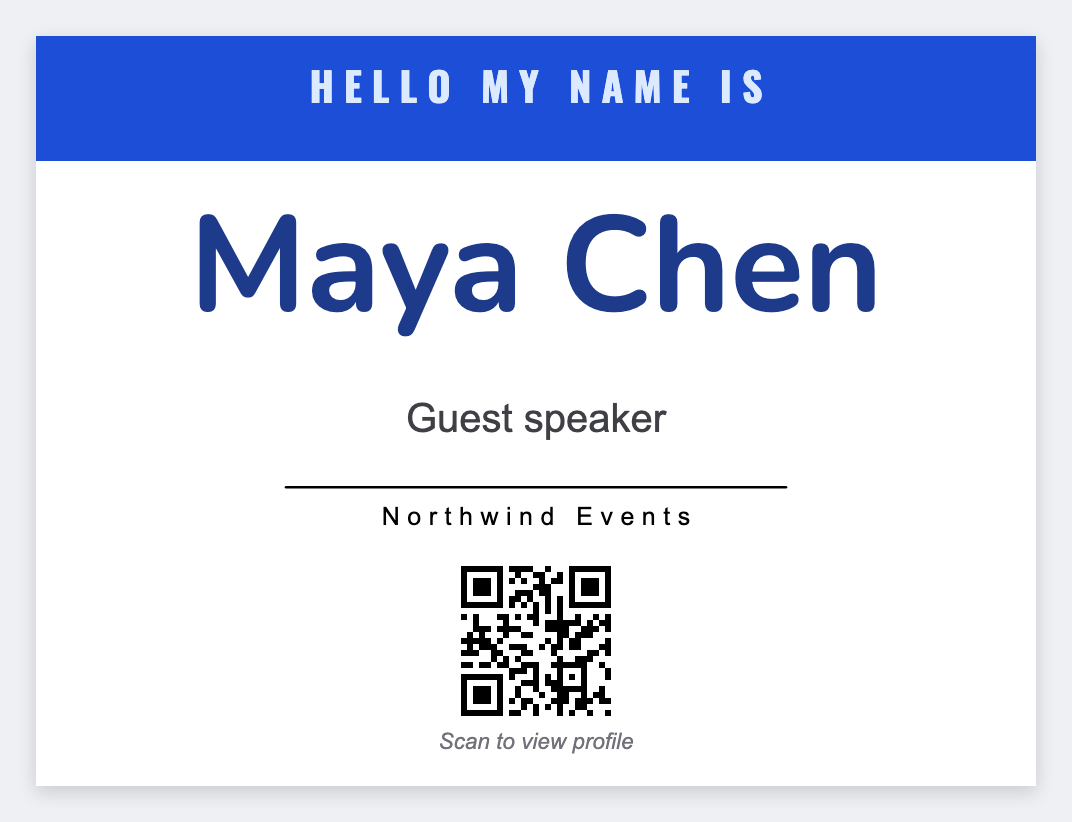
Have the attendee list in Google Sheets? Publish it as CSV, open the free label maker, map {{first}} and {{company}}, and print one badge per row. Faster than a Docs mail merge.
Good to know: The sheet must be published as CSV (or you download CSV). We fetch only that published file. We do not log into your Google account.
How to print name badges from Google Sheets
- In Sheets: File, Share, Publish to web, choose CSV. Copy the link. Or download CSV.
- Open https://app.mylabelmaker.com. No signup. Set 4x3, or your badge stock.
- Add {{first}}, {{last}}, {{company}}. Paste the publish URL or upload the CSV.
- Preview two rows. Print the stack, or download PDF if you print another way.
Keep the sheet tidy
One person per row. Header names that match the tokens. No merged cells. If a name is missing on row 40, the badge will be blank there too.
Print or save
Got a Zebra? Print from the browser with Browser Print, at the printer's DPI. Otherwise download PNG, JPG, SVG, PDF, or ZPL. JSON keeps the label you can open later.