Print Amazon FBA labels on a Zebra from your browser
You can print Amazon FBA labels on a Zebra. Two jobs: a small FNSKU on each unit (usually 2x1), and a 4x6 on the carton going to the FC. Open the free label maker, map the sheet, preview, print. No signup. Print official Amazon PDFs as issued when Amazon requires that file.
What you'll need
- A Zebra (4x6 for cartons, a smaller roll for FNSKU)
- Zebra Browser Print on this computer, free from Zebra
- Your FNSKU list or shipment spreadsheet
- Chrome, Edge, Brave, Firefox, or Safari. Mac or Windows
How to print Amazon FBA labels on a Zebra
Open the app, then get the FNSKU list ready
Open https://app.mylabelmaker.com. No signup. In Seller Central, Inventory, Manage Inventory, or the Print Item Labels flow, export the ASINs and FNSKUs you need. Columns like fnsku, product_name, quantity, asin. One row per unit, or per SKU if you will print copies. For inbound cartons, keep a second sheet with warehouse address and weight.
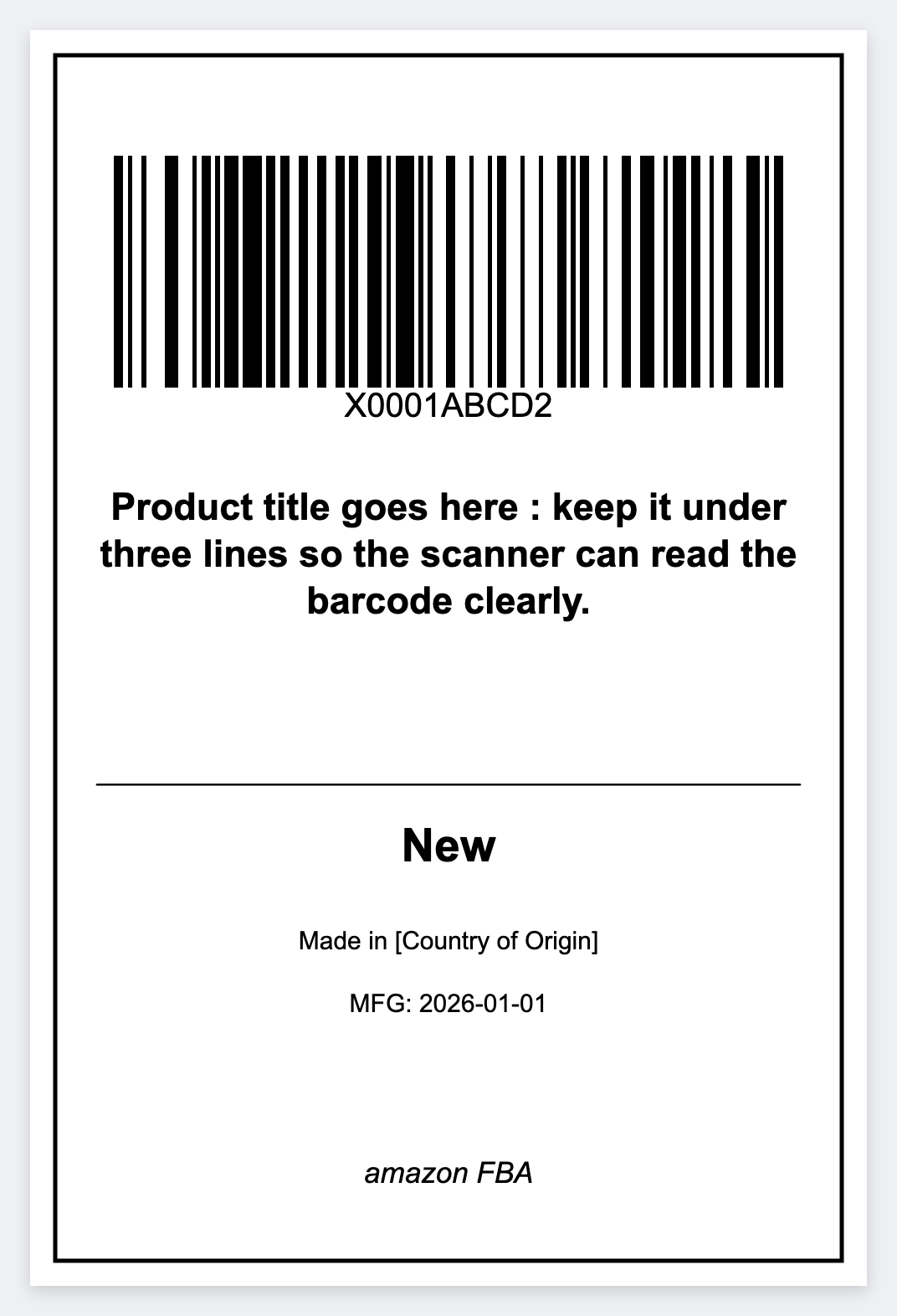
Design the FNSKU sticker
Use a compact template or quick custom design
Open https://app.mylabelmaker.com. No signup. Set 2x1 or 2.25x1.25, or start from the Amazon FBA template.
Add:
- FNSKU as a large, bold CODE128 or UPC-style barcode (most important element for Amazon).
- Small human-readable FNSKU text below or beside it.
- Optional: short product name or ASIN (autoshrink if needed).
- Quiet zone around the barcode.
Replace the barcode value with {{fnsku}} (or whatever header you used). Use Variables to load the spreadsheet.
Design the 4x6 carton label
Load the shipping template and add Amazon warehouse details
Switch to a 4x6 label size. Use the built-in "UPS Ground" or "Amazon FBA" style template as a starting point (or the one from the UPS tutorial).
Typical fields for FBA inbound:
- Amazon warehouse address block (use tokens for flexibility across different FCs).
- Shipment ID or reference.
- Carton count / total weight.
- Big scannable barcode for the shipment (if Amazon provides one) or your internal tracking.
Load your shipping/fulfillment spreadsheet the same way. The row navigator lets you verify every carton label before printing.
Print the right number of stickers
Load the appropriate spreadsheet for the label type you're printing. Use the row navigator to spot-check a few items.
When you're ready, print one label per row. For quantity, duplicate rows in the sheet, or print copies of the current label. There is no qty column that auto-expands.
Copy ZPL if you need it
If you need ZPL for a print server, copy ZPL from the app. You get native ZPL sized for your printer's DPI. Paste it where you need it.