Print UPS Ground shipping labels on Zebra printers
New here? Start with create and print labels online free, the hub for design, barcodes, shipping, and thermal print setup. Also: free label maker software · full site map.
Yes. You can print UPS shipping labels on a Zebra. Buy postage in UPS, WorldShip, ShipStation, or Pirate Ship and print that 4x6 as issued. Use the free label maker when you need a ship-to face, pack note, or a list from Excel. We do not sell postage. No signup.
What you'll need
- A Zebra thermal printer and 4x6 labels.
- Zebra Browser Print on the computer next to the printer. It's free from Zebra.
- A list of shipments, even a simple Excel or Google Sheet.
- Chrome, Edge, Brave, Firefox, or Safari on Mac or Windows.
How to print a UPS pack face in the free label maker
Open the UPS Ground template
Go to https://app.mylabelmaker.com. Open Templates, then the shipping category, and pick UPS Ground. The artboard is already 4x6. You can add your logo or change the type in a minute.
Put spreadsheet columns on the label
Use {{ }} for anything that changes
Click a text or barcode field and match your column names:
- Ship-to name:
{{name}}or{{recipient}} - Address:
{{address1}},{{city}},{{state}} {{zip}} - Your own tracking field, if you already have it:
{{tracking}} - Weight:
{{weight}} lbs - Order number:
{{order}}
Barcodes and QR codes take the same tokens. Preview a row before you print the stack.
Load the day's list from Excel or Google Sheets
Paste a CSV or a published sheet
Click the {{ }} button. Paste CSV, upload a file, or drop in a published Google Sheets CSV URL. Headers become inserts. Walk the row navigator so a bad address does not hit the printer.
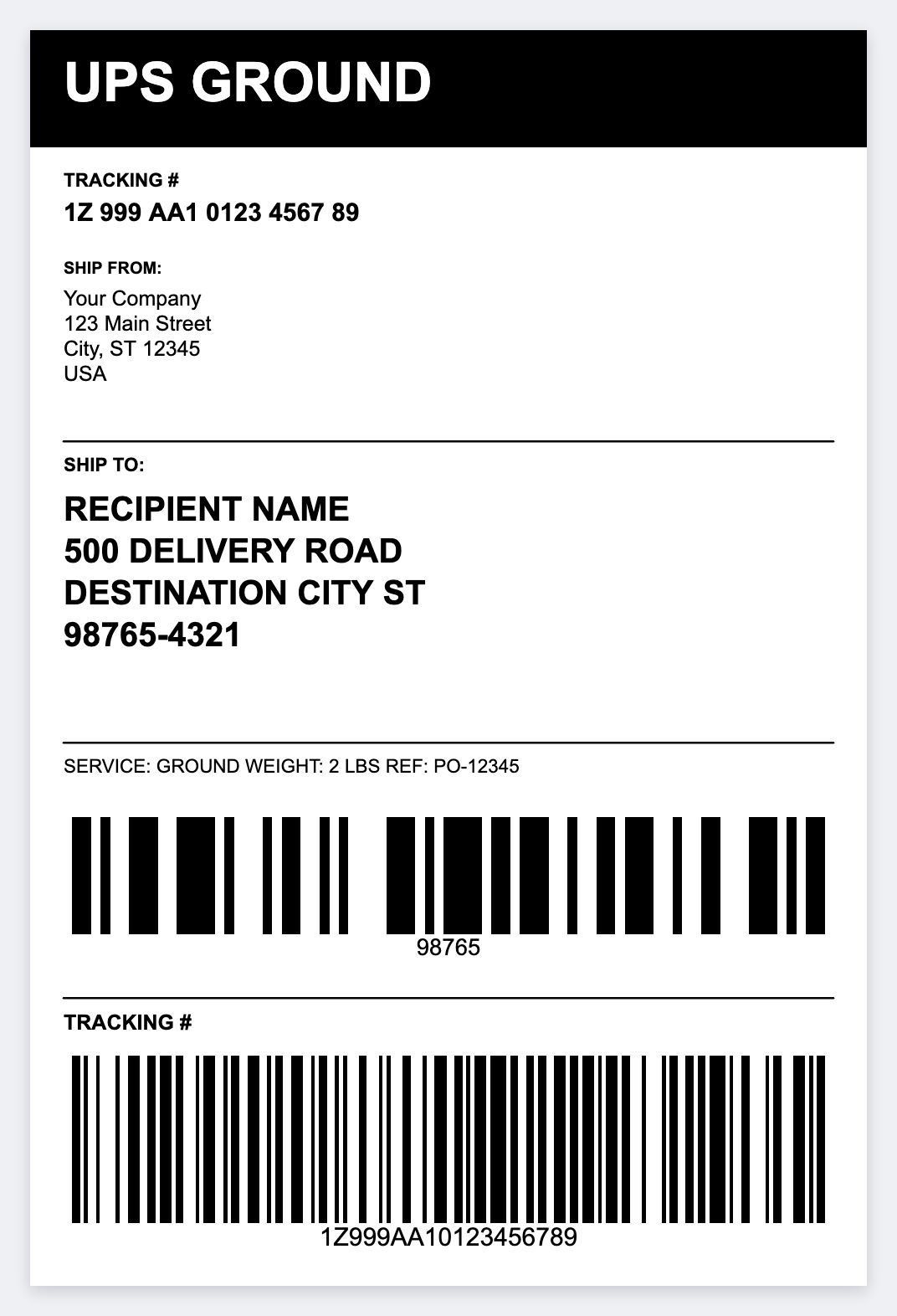
Print to Zebra, or copy ZPL
Print from this computer, or export the job
When rows are loaded, Print becomes Print N rows. Confirm the count and send the stack to your Zebra. Or use Options, Copy ZPL if your WMS needs the code.
Keep the tracking barcode tall (about an inch) if you print a CODE128 you already own. Leave a quiet zone. Set 4x6, or 4x8 if you also need a packing-list strip. Match 203 or 300 DPI so bars stay sharp.
Save the layout for the next shift
Options, Export label, and save something like UPS-Ground-v2.json. Anyone on the team can import it. The file remembers the token names, so a new CSV drops in cleanly.
Open the UPS Ground template
Free browser design. Print from this computer on Mac or Windows. No signup.
Open ups ground template