Print shelf labels from Excel
Do this in the free app: app.mylabelmaker.com. No signup. Design the label, then print on a Zebra or download PNG / PDF / ZPL.
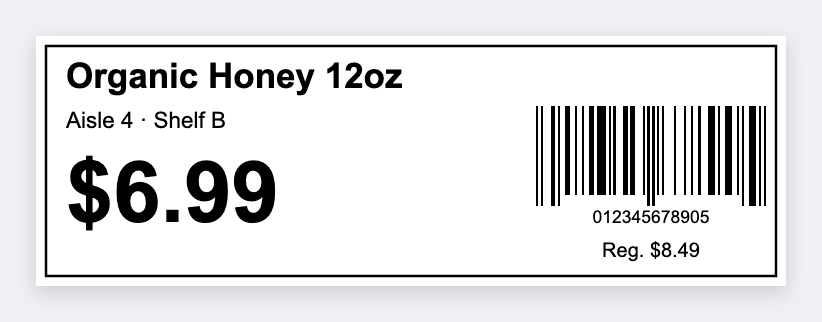
You can print shelf labels from Excel when the item list already lives in a workbook. Open the free label maker, set 2x1 or 3x1, map {{name}} {{price}} {{sku}}, and print the aisle.
Good to know: Measure the shelf lip. A 3x1 on a 1-inch channel will curl. Set the size to the plastic, not to the cell in Excel.
How to print shelf labels from Excel
- Export name, price, SKU. One row per facing.
- Open https://app.mylabelmaker.com. No signup. Set the channel size you measured.
- Map {{name}}, {{price}}, and a barcode on {{sku}} if you scan it.
- Preview two SKUs. Print the run. Reprint one row after a price change.
Weekly price changes
Do not rebuild the layout. Change the cell, reload the CSV, print the rows that moved. Keep the JSON as the master face.
Print or save
Got a Zebra? Print from the browser with Browser Print, at the printer's DPI. Otherwise download PNG, JPG, SVG, PDF, or ZPL. JSON keeps the label you can open later.