Design nutrition facts labels on Zebra printers
Yes, you can design nutrition facts labels on a Zebra. Open the Nutrition Facts template, type the numbers you already have, add a UPC if you own one, print from Excel. This is a design panel, not an FDA filing and not a lab.
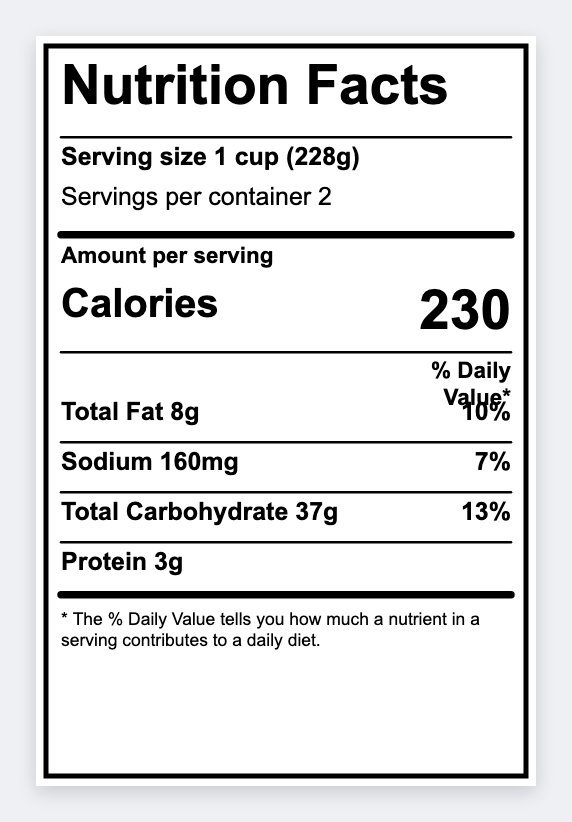
The FDA-style layout is already in the template: serving size at the top, calories, a % Daily Value column, ingredients at the bottom. You type the values. We do not calculate Daily Value from a recipe.
What you'll need
- 2" or 3" wide thermal labels (common sizes: 2x2, 2.25x1.25, 3x2, 4x3).
- Zebra printer + Browser Print.
- A spreadsheet with columns for: product_name, serving_size, calories, total_fat, sodium, ingredients, upc, etc.
Step 1: Load the nutrition facts template
Start with the pre-built panel
Open https://app.mylabelmaker.com. No signup. Left rail Templates, Retail, "Nutrition facts".
It already has the classic black-bordered panel, "Nutrition Facts" header, bold "Amount per serving", calories row, and the %DV column. The template is sized for common retail stickers.
Step 2: Pull numbers from Excel
Put a column name in curly braces
Edit the text and replace sample numbers with tokens that match your spreadsheet headers:
- Product name at top:
{{product}} - Serving size:
{{serving}} - Calories:
{{calories}} - Ingredients statement (usually at bottom):
{{ingredients}} - Barcode value:
{{upc}}(set barcode format to UPC-A or EAN-13)
Long ingredients lists benefit from the Auto-shrink checkbox in the properties popover (or top toolbar "More"). It will scale the font down just enough to fit the available width without wrapping awkwardly.
Step 3: Load your product catalog as batch data
One design, dozens of SKUs
Prepare (or export) a spreadsheet with one row per finished good. Columns should include at minimum: product, serving, calories, fat, sodium, ingredients, upc.
In mylabelmaker open the Variables panel ({{ }} button), paste the CSV or the Google Sheet publish URL. The row navigator appears. Step through products and watch the entire panel + barcode update live.
Step 4: Handle long ingredients and small label sizes
Autoshrink + careful line breaks
Ingredients statements are often the longest element. Select the ingredients text element, open the "More" properties popover, and enable Auto-shrink to fit width. You can also set a minimum font size in the same popover so nothing becomes unreadable.
For very small labels (1.5x1 or 2x1) consider splitting the panel across two labels or using a condensed layout (some brands put the full facts on the back and a "see back" + calories highlight on the front).
Step 5: Print the batch and verify
With the navigator showing, Print becomes "Print N rows". Send the batch. The editor rasterizes at the printer's native DPI (use Auto-detect in printer settings), so the fine %DV hairlines and the UPC bars stay sharp on 203, 300, or 600 dpi Zebras.
Always print a test label for the first product and scan the UPC with a real scanner before the full run.
Open the nutrition facts template
Type your numbers. Print from Excel. Design only. Free. No signup.
Open nutrition facts template