Print wax melt labels from Excel
Do this in the free app: app.mylabelmaker.com. No signup. Design the label, then print on a Zebra or download PNG / PDF / ZPL.
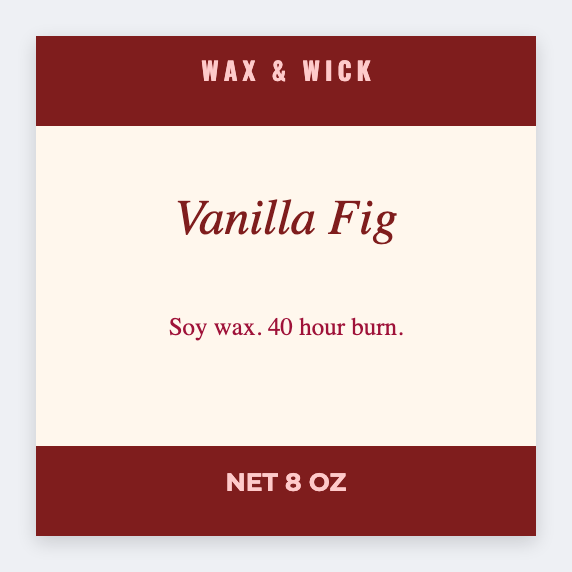
Yes. You can print wax melt labels from Excel when the clamshells are ready and the scent list is in a workbook. Open the free label maker, set a small lid size, map {{scent}}, then print the run. No signup.
Good to know: Small lids need short names. If the fragrance title wraps off the sticker, shorten the cell. Do not shrink the type until nobody can read it. Warning text is yours.
How to print wax melt labels from Excel
- Open https://app.mylabelmaker.com. No signup.
- Keep a sheet with scent, weight, and an optional warning column.
- Set 1.5x1 or 2x1. That fits most clamshell lids.
- Map
{{scent}}. Add weight if it fits. Preview two scents, then print.
Same pour, two products
Jars and melts often share a scent list. Two sizes, one CSV. Save two JSON masters so you are not rebuilding the layout every Saturday.
Print from this computer, or save a file
On a Zebra, print with Browser Print at the printer's DPI. Everyone else: download PNG, JPEG, SVG, PDF, or ZPL. JSON keeps the editable master.