How to mail merge labels from Excel
Free label maker: Open app.mylabelmaker.com. No signup. Design the label, print from Excel if you have a list, then download PNG or PDF or print to a Zebra from this computer.
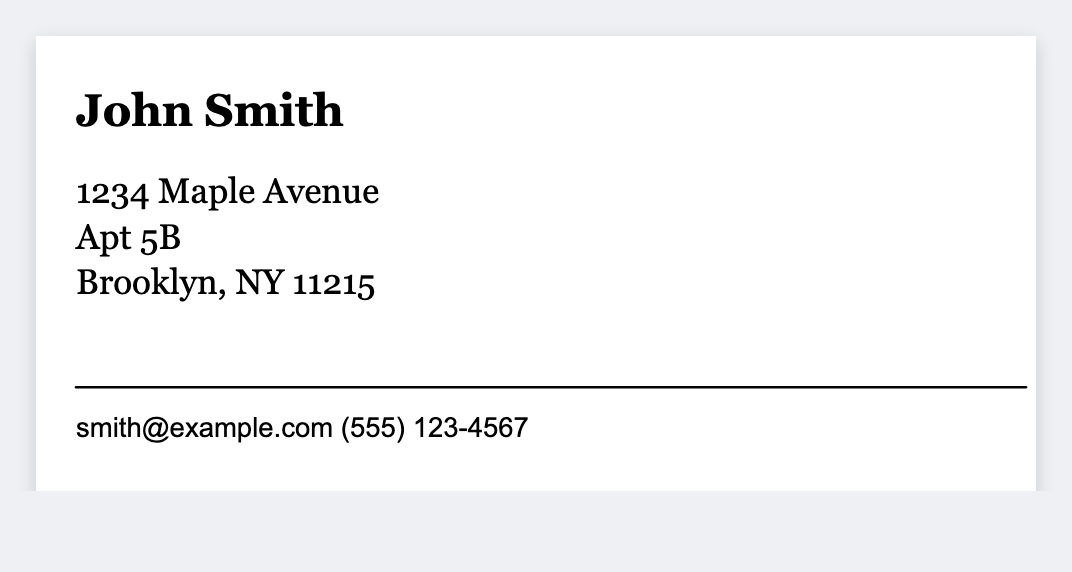
You can mail merge labels free in the browser. Design once with {{tokens}}, load Excel, CSV, or Google Sheets, preview each row, print or download. No Word and Avery template wrestling.
Related: labels from Excel · Google Sheets labels · batch print.
How to mail merge labels from Excel
- Open https://app.mylabelmaker.com. No signup.
- Prepare a UTF-8 CSV or Excel file with clear column headers. One row per label.
- Place
{{column}}tokens in text, a barcode, or a QR field. - Load the file in Variables. Preview a row. Then print the stack or download PDF.
What you can merge
- Addresses and shipping faces
- Name badges and event tags
- Product SKUs and prices
- Unique QR per row
- Serial numbers and asset IDs
Print or save
If you have a Zebra, print from this computer with Browser Print at the printer's DPI. Everyone else: download PNG, JPEG, SVG, PDF, or ZPL. JSON keeps the editable master.
Open the free label maker
No signup. Custom size, barcode or QR, print from Excel, PNG or PDF. Print to a Zebra or from this computer.
Open address label template