How to make pharmacy bottle labels (design only)
Open the free label maker: app.mylabelmaker.com. No signup. Design the label, then print to a Zebra or download PNG, PDF, or ZPL.
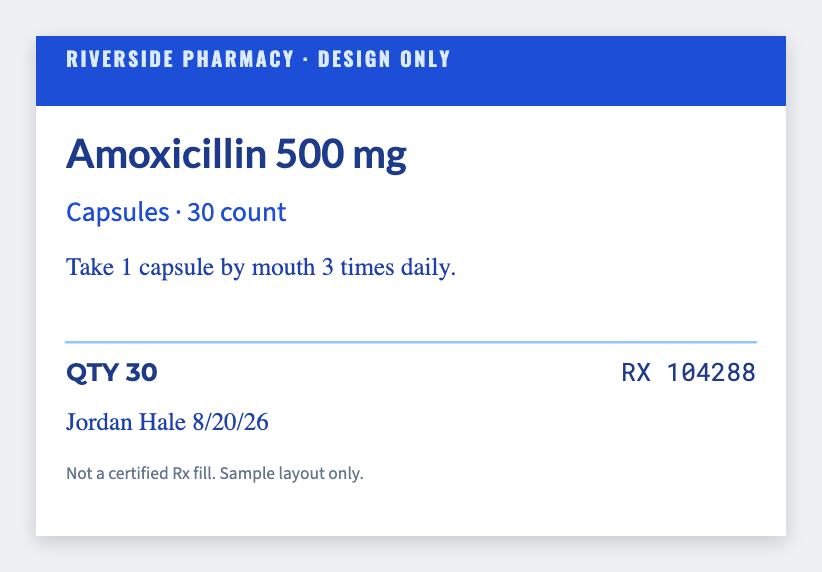
You can design pharmacy bottle labels in the free label maker. Put approved name and directions in a sheet, set the vial size, map the text, and print a test. This is not a certified pharmacy or LIS system.
Good to know: We don't fill prescriptions, check interactions, or replace your pharmacy software. You own required text and who may print it.
How to make pharmacy bottle labels
- Open the pharmacy bottle template. No signup.
- Use only text your pharmacy system already approved. Export a simple CSV if you must.
- Set the vial wrap. Map {{name}} and {{directions}}. Keep type large.
- Print one test. A licensed person should check it before any run.
What this is not
It isn't Rx software. If you already print from a pharmacy system, keep using that for legal labels. Use this canvas only for extra faces you control (bag seals, clinic wayfinding), or for a layout mock before IT wires a real printer.
Print or save
Got a Zebra? Print with Browser Print at the printer's DPI. No Zebra? Print from this computer, or download PNG, JPG, SVG, PDF, or ZPL. Save JSON if you want to open the layout again later.
Design a vial face
Your approved text. Our canvas. Have a licensed person check a test.
Open pharmacy vial template