How to make tote labels from a list
Open the free label maker: app.mylabelmaker.com. No signup. Design the label, then print to a Zebra or download PNG, PDF, or ZPL.
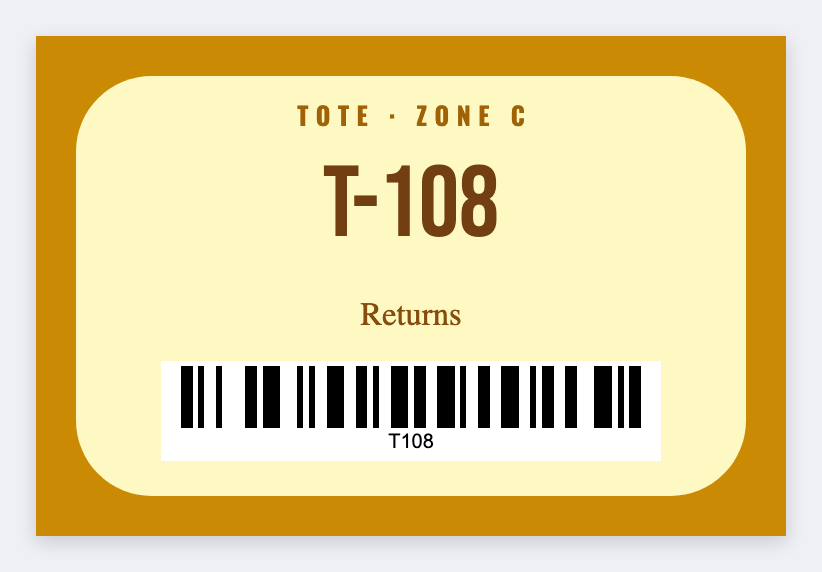
You can make tote labels from a list in the free label maker. Put tote id and zone in a sheet, set 3x2, map {{tote}} and a barcode, and print the fleet.
Good to know: Don't put customer addresses on a tote that travels the floor if that's private.
How to make tote labels from a list
- Open the tote template. No signup.
- Put tote, zone, and optional barcode on each Excel row.
- Set 3x2. Map {{tote}} large, barcode on the id, {{zone}} smaller.
- Preview two totes. Print both sides if you need it.
Carts too
Same layout, different size. Save a second JSON for cart faces.
Print or save
Got a Zebra? Print with Browser Print at the printer's DPI. No Zebra? Print from this computer, or download PNG, JPG, SVG, PDF, or ZPL. Save JSON if you want to open the layout again later.
Print the tote fleet
Id and zone from the sheet. Print both sides if the tote spins around.
Open tote label template